You don’t need “more content.” You need assets that don’t get ignored. Static can look great and still disappear in a feed that’s moving nonstop.
The problem is the workflow. Product visuals are often static, or too expensive to animate. Motion tools feel heavy and slow. Too many tools and handoffs break flow. And learning motion software for a simple loop is overkill.
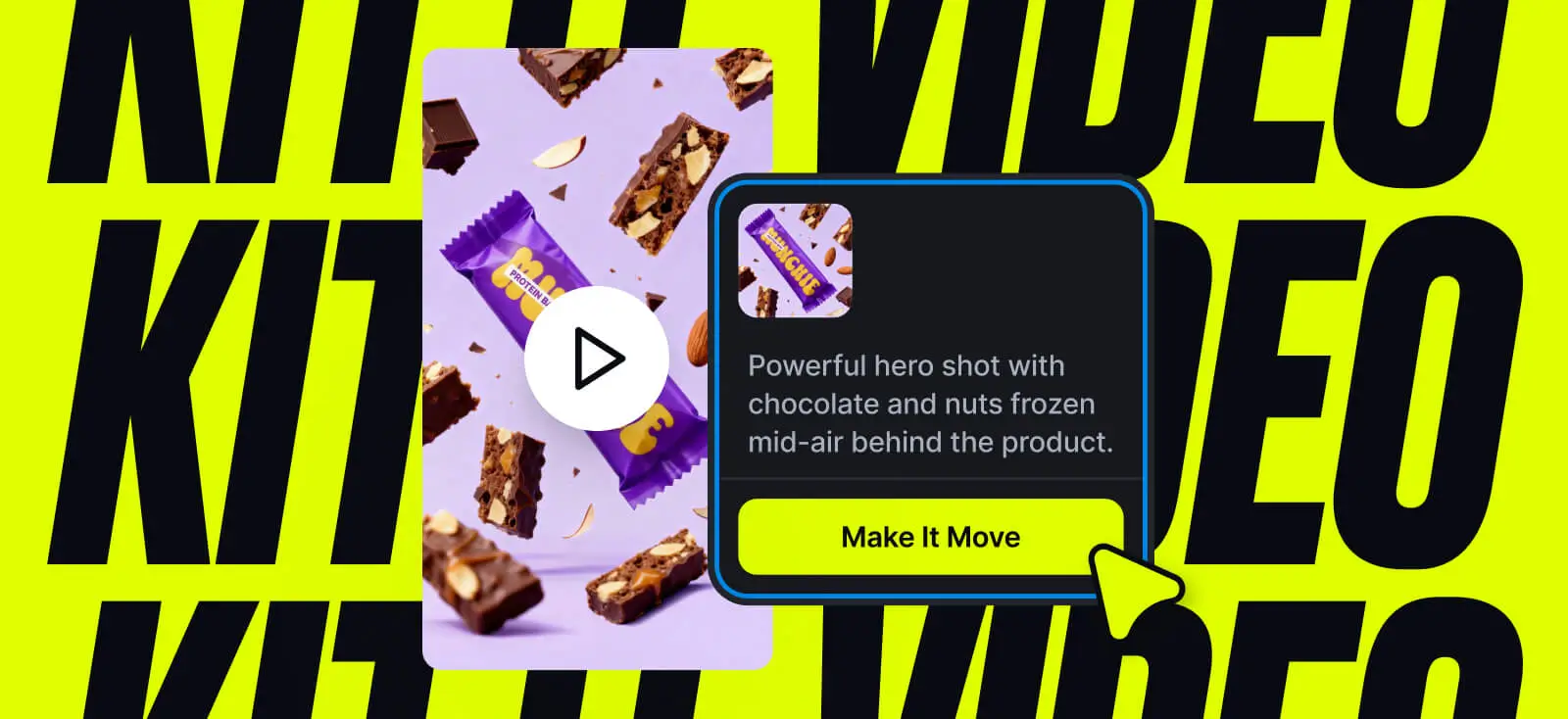
This Kittl Video tutorial helps you skip the workflow tax. Take your existing design and turn it into a six-second loop on the canvas, without leaving your design flow. No timelines. No keyframes. Just design, then motion.
Start with a video template. Choose a template, add a prompt, and generate a clip you can post or launch today.
How to create a video:
1) Start with your design
You have two options:
- One frame option: Use a single canvas as both the start and end frame. This is best for seamless loops and typography-heavy layouts because the video has to return to the exact same composition.
- Two-frame option: Click and drag both the first and second canvas into the frame slots so Kittl automatically assigns them as the start frame and end frame. Use this when you want a clear change over time, like a reveal, a before-and-after, or a product moving into a new position.
If your frames are reversed, use the switch icon to swap start and end.
2) Generate your motion in the AI panel
Open the AI panel at the bottom of your screen and choose Generate Video. In the prompt field, describe what changes from the start frame to the end frame. Keep it specific and minimal.
Helpful prompt habits for design-first motion
- Say what is allowed to move
- Say what must stay locked and readable
- Keep camera motion slow and subtle for short loops
In design-first motion, your design already carries a lot of subject, context, and style. Your prompt mainly needs to control camera behavior, what moves, and what must stay readable. To find examples of what AI video prompts work, check out this blog.
3) Choose format and duration
Start by picking your favorite engine, but which one should you use?
| Engine | Best for | What to know | Duration options |
|---|---|---|---|
| Veo 3.1-fast | Fast iteration, testing motions, quick variations | Prioritize speed while exploring camera moves and action intensity. Audio adds +10 tokens/sec on top of base. | 4s, 6s, 8s |
| Veo 3.1 | Final passes, higher control, videos that need context-aware audio | Use when you’re ready to lock timing, composition, and optional sound. Audio adds +40 tokens/sec on top of base. | 4s, 6s, 8s |
| King 2.5 Turbo Pro | Longer clips at lower token/sec cost | No audio. Good pick when you need a longer deliverable without paying high tokens/sec. | 5s, 10s |
| PixVerse v5 | Standard short clips when audio isn’t needed | No audio. Higher token/sec cost and longer runtime based on current settings. | 5s, 8s |
| Seedance 1.5 Pro | Most flexible silent duration range | No audio. Fast runtime and supports the widest set of lengths. | 4s, 6s, 8s, 10s, 12s |
| Grok Imagine Video | Fast, high-quality clips with synced audio and strong detail retention | Text or image to video with coherent motion and synchronized audio from one prompt. Strong at preserving small details like text in reference images. Around 80s generation time, up to 720p, 16 tokens/sec. Supports 1 frame reference only. | 2s, 5s, 6s, 8s, 10s, 15s |
Once you select your engine, pick an aspect ratio based on placement. 16:9 for horizontal or 9:16 for vertical.
4) Preview it on the canvas and iterate once

Even a solid prompt still gives the model a little room to interpret things. Sometimes that interpretation is a nice, creative surprise. Sometimes it is not what you meant at all.
So once you generate, Kittl drops the result into a new canvas. See if you like the end result. If you don’t, click into the canvas and edit the prompt.
Quick fixes that save time
- If text drifts, switch to locked camera and add “keep typography perfectly still and readable”
- If objects warp, add “no deformation, no bending, no melting”
- If motion is too much, add “subtle, minimal, micro movement only”
5) That’s the end of your first Kittl Video tutorial! Export and turn it into a mini-campaign
Export your loop as an MP4, and you have your campaign base.
Optional: From there, make three quick versions by changing only one thing in the prompt each time: a headline-first cut for paid, a clean logo-led cut for brand, and a product-first cut for promos or e-commerce.
Same design. Three angles. One workflow.
Key takeaway: Make your next ad feel alive with Kittl Video tutorial
If you’re stuck at “I have the design, now what?”, this is the path that keeps you moving. Kittl Video works best when you stay inside the canvas and treat motion like a quick extension of your existing design, not a separate project.
- Use one frame for seamless loops and typography-heavy designs
- Use two frames when you want a clear start-to-end change
- Describe only the motion between frames and keep camera movement subtle
- Generate your video, then iterate by editing the prompt directly in the new video canvas
Ready to make your next design move? Open Kittl and build a six-second loop that sells,