Meet Imagen 4, Google DeepMind’s ambitious breakthrough in text-to-image generation — finally tackling a weakness that’s haunted AI art for years.
This new model doesn’t just produce pretty images — it generates faster, supports up to 2K resolution, and improves in detail, texture fidelity, and prompt adherence.
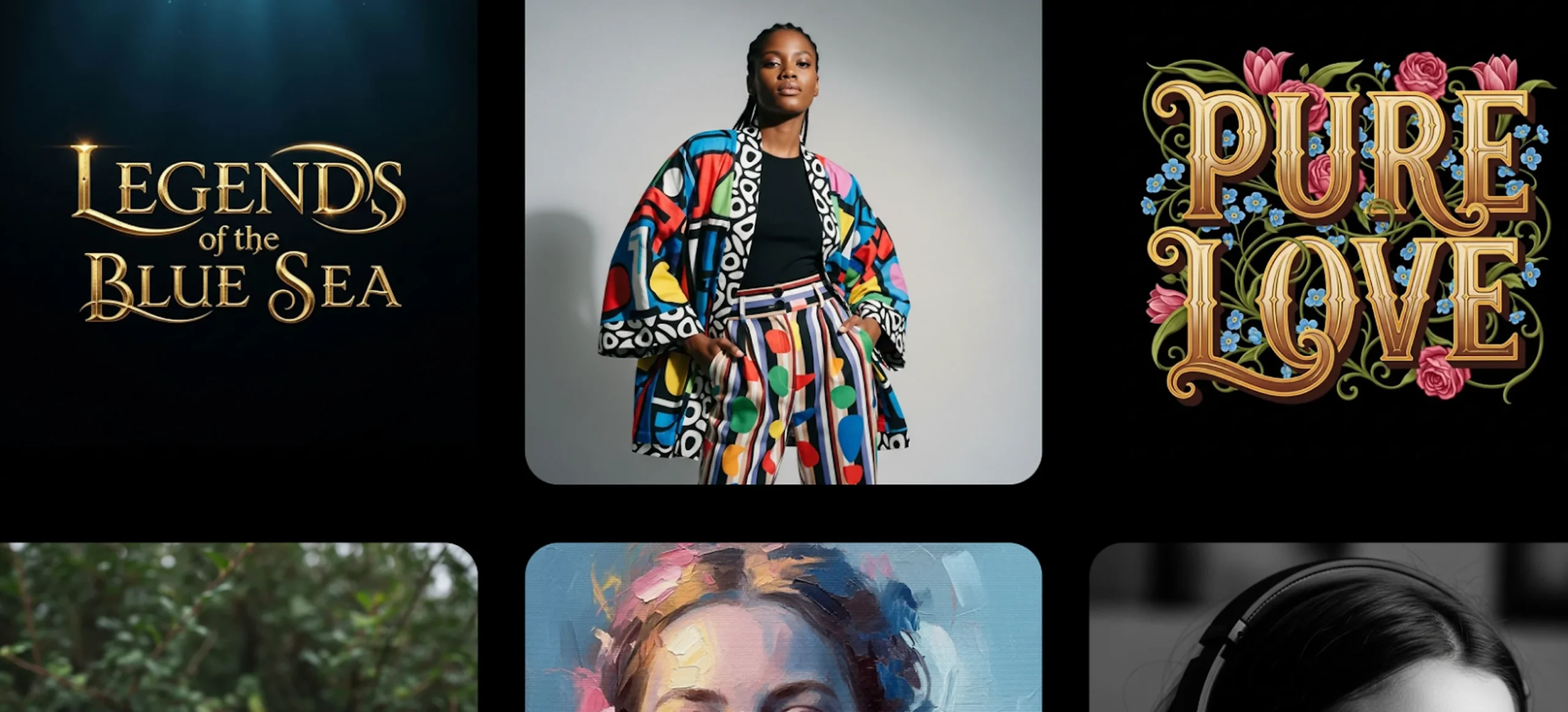
According to The Verge, Imagen 4 promises “significantly improved” text rendering over its predecessor, making it easier to produce posters, comics, or branded assets with clear lettering.
While Ideogram AI earned its reputation for handling stylized lettering, Imagen 4 approaches the same problem on Google’s scale: combining precision text with photo-level realism across scenes.
In the sections ahead, we’ll explore how Imagen 4 works, where it outshines rivals, how to prompt it most effectively, and whether it really can shave hours off your design workflow.
What is Imagen 4?
Imagen 4 is Google DeepMind’s newest text-to-image model, built to solve one of AI art’s biggest weaknesses: text rendering. But it represents more than just a fix for garbled text.
Unlike earlier models that often warped or garbled letters, Imagen 4 was trained to treat typography as part of the image itself, not an afterthought.
According to The Verge, it delivers “superior typography.” Hands-on tests by VideoProc found that Imagen 4 also improves fine detail retention, texture realism, and prompt fidelity compared to Imagen 3. Yahoo Tech notes that it comes in multiple variants, including Ultra, which is tuned for complex or detail-heavy prompts.
For designers, this matters beyond just words on a poster. Imagen 4 is proving itself as a more stable, versatile model overall — with fewer errors, more consistent outputs, and better handling of aspect ratios.
That means sharper product mockups, cleaner illustrations, and more reliable results in styles ranging from photorealism to artistic renderings.
How Imagen 4 compares to other AI tools in typography and beyond
To really see where Google Imagen 4 stands, it helps to put it side by side with the other big players.
Below is a breakdown comparing Imagen 4 against Midjourney, DALL·E 3, and Stable Diffusion XL — focusing on realism, prompt accuracy, speed, stability, text rendering, creative flexibility, and platform integration.
| Feature | Imagen 4 | Midjourney v6 | DALL·E 3 | Stable Diffusion XL (SDXL) |
| Realism & detail | Sharp textures, lifelike rendering, fewer smoothing artifacts | Cinematic realism, strong lighting, sometimes stylized “flair” | Clean realism, less stylized, excels at stock-photo style | Flexible; realism varies depending on model checkpoint |
| Prompt fidelity | Excellent at following detailed/multi-step prompts | Strong but sometimes adds creative interpretation | Very literal — usually nails every detail | Depends on fine-tuning; strong with ControlNet/LoRA |
| Speed | Fast mode up to 10× faster than Imagen 3 | 30–60s per job | Moderate speed, often slower via API | Variable; local GPU speed dependent |
| Stability | Consistent outputs, fewer generation failures | Stable, but can ignore small prompt details | Consistent, though limited style range | Can be unstable if using community models |
| Text rendering | Much improved, often legible in posters/signs | Weak — tends to produce gibberish text | Very strong text handling, similar to Imagen 4 | Weak, unless paired with extensions |
| Creative range | Balanced — strong in realism, can adapt to artistic prompts but less stylized by default | Outstanding for surreal, cinematic, painterly aesthetics | Literal/functional; weaker in artistic exploration | Extremely broad via custom models |
| Integration | Built into Google’s Gemini, Workspace, and Vertex AI tools | Discord + web app community ecosystem | Directly integrated with ChatGPT & Microsoft tools | Open-source; integrates anywhere |
How to use Imagen 4 in Kittl Editor
01. Select the AI under the “Create” tab

Click the Create tab in the Kittl AI menu, then choose Imagen 4 from the list of models. This is where you’ll access Google DeepMind’s latest text-to-image engine inside the editor.
02. Describe the kind of image you want

Type a clear description of your idea in the text box. If you need help shaping your description into something Imagen 4 understands, check out this AI prompt writing guide.
03. Adjust settings before generating

Above the Generate Image button, you can fine-tune the aspect ratio, set privacy options, and choose how many variations to create at once.
04. Choose from styles if you’re unsure

Not sure how to phrase your prompt? You can also browse styles. Imagen 4 in Kittl is strong at logos, posters, and high-fidelity imagery with embedded text, making it a great choice when typography needs to look clean.
05. Generate!

From here, hit Generate, and Kittl will return multiple Imagen 4 results. Drop your favorite straight onto the canvas, customize colors or fonts, and pair it with other design elements.
Imagen 4 styles in Kittl

When you’re not sure where to start, you can also pick from predefined styles. Imagen 4 in Kittl covers a broad creative range, with these specialties:
| Category | Style options in Kittl | Best for |
| Photo | Product photograph, black & white | Realistic product mockups, ad visuals |
| Vector | Line art, vector icon, anime vector, vector art, coloring book, vintage drawing | Clean graphics, logos, illustrations |
| Pattern | Wallpaper, artistic, ink, cute | Backgrounds, decorative prints, packaging |
| Clip Art | Graffiti-style character, cartoon | Stickers, mascots, casual merch |
| Artistic | Oil painting, sticker pop | Posters, album covers, expressive art |
| Typography | Floral lettering, fantasy | Wordmarks, decorative text, branding |
Is Imagen 4 free?
One of the top questions people ask is: “Is Imagen 4 free?” The answer is: yes, but only at a limited scale.
Inside Kittl, Imagen 4 is one of several AI models you can choose for image generation. On the Free plan, you get a one-time bundle of AI images, including about 10 generations with Imagen 4, along with starter tokens for models like Flux Schnell, SDXL Flash, and DALL·E 3.
This lets you experiment with simple poster designs, product-style photos, or text-heavy graphics without paying anything.
But if you plan to use Imagen 4 regularly, upgrading is where the real value shows:
| Plan | Imagen 4 access | Other highlights | Best for |
| Free | ~10 generations (part of 100 total AI images) | 5 projects, pro templates, 1M+ free assets | Beginners testing AI for the first time |
| Pro | ~100 generations (part of 1,000 monthly AI images) | 50 projects, HD/transparent exports, 10GB storage, commercial license | Freelancers or small shops |
| Expert | ~300 generations (part of 3,000 monthly AI images) | Unlimited projects, 10+ AI tools, 100GB storage, print-on-demand presets | POD sellers or design teams |
Compared to open-source tools like SDXL, which you can run locally with unlimited outputs (but at the cost of setup and fine-tuning), Imagen 4 in Kittl is a closed, subscription-based model.
You trade full control for convenience: out-of-the-box typography that works without hours of tinkering.
Think of Imagen 4’s pricing less as “paying for credits” and more as paying for time saved. Instead of fixing garbled text in Photoshop after generation, you get clean, usable words from the start.
How to write prompts for Imagen 4

Like most AIs, clarity matters. But Imagen 4 especially rewards short, structured prompts that read like a mini design brief.
Google’s own documentation stresses the importance of covering the subject, context, and style, and advises specifying the exact words you want rendered inside the image.
A practical rule for writing prompts in Kittl’s editor is:
Formula: Subject + Style + Detail
- Subject: what you want (poster, character, logo, product photo)
- Style: the look or vibe (retro, graffiti, vector, fantasy)
- Detail: layout, colors, or exact phrase to render
Example prompt
“Graffiti-style character of a fox holding a spray can, cartoon outline, bright colors, bold lettering ‘Street Vibes’ on a brick wall background.”
Why this works for Imagen 4:
- It includes the exact phrase (“Street Vibes”) to draw, which is crucial for text fidelity. Google’s docs provide a clear walkthrough of how to generate text in images
- Subject first (“graffiti-style character of a fox”) sets the composition target early. Google notes that placing key elements at the start helps the model prioritize them
- Layout cues (“on a brick wall background”) and style signals (“cartoon outline, bright colors, bold lettering”) reduce ambiguity. Prompts with clear stylistic cues produce more accurate lettering.
- Keep it concise. Overtly long prompts can cause Imagen 4 to insert parts of your text literally into the artwork, instead of treating it as guidance.
Good vs. bad prompt example
Using Kittl’s graffiti-style character option:
| Bad prompt | Good prompt |
| “cool street art cartoon urban design words fun” | “Graffiti-style character of a fox holding a spray can, cartoon outline, bright colors, bold lettering ‘Street Vibes’ on a brick wall background” |
The bad prompt fails because it’s too vague and fragmented.
- No subject: It doesn’t tell the AI what the main focus should be (a character, a logo, a scene). Imagen 4 struggles to prioritize when it’s only given abstract words.
- Unclear text target: Saying “words fun” doesn’t specify what phrase should appear, so the model may produce random or garbled letters instead of usable typography.
- Disconnected keywords: Throwing in style hints like “street art” or “cartoon” without structure makes the AI guess how they should combine, often resulting in chaotic or mismatched outputs.
- No layout or context: Without context (e.g., a background or setting), the model lacks direction on how to compose the scene, leading to generic or messy results.
Keep prompts concise — under ~150 words. Developers have noted that very long prompts can confuse Imagen 4, sometimes inserting your instructions directly into the artwork. Instead, refine step by step: adjust one variable (style, color, layout) per pass.
For more ways to craft effective prompts, check out this prompt writing tips guide.
Key takeaway: How Google Imagen 4 fixes the text problem that broke AI art
For years, AI art tools impressed with stunning visuals but stumbled on a simple task: writing clear text inside images. Logos came out warped, posters unreadable, and labels needed hours of manual correction.
Imagen 4 changes that. Here’s why:
- Typography-first training → Unlike earlier models, Imagen 4 was trained to treat text as part of the image, not an afterthought.
- Superior spelling & letter clarity → Phrases and words render with consistent shapes instead of broken or missing letters.
- Balanced with realism → Imagen 4 doesn’t just fix text; it integrates typography into high-quality, photorealistic scenes.
- Less tinkering required → Unlike open-source models like SDXL, Imagen 4 produces legible text out of the box, without ControlNet or fine-tuning.
- Design-ready outputs → Posters, logos, and product mockups can be used directly, saving hours of cleanup in Photoshop or Illustrator.